 IsoCity
Save, back up and restore your city.
Your cities are stored in this browser on this device. Use a named save to return from the menu, and export a backup to keep a copy outside browser storage.
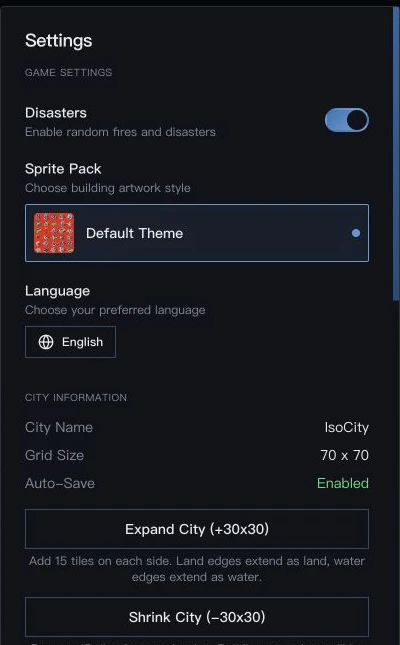
Make a named save
Open Settings. Under Saved Cities, select Save followed by the city name. Wait for City Saved!; a click alone does not mean the write completed.
Return to your city
Exit to the main menu after saving. Under Saved cities, choose Load beside your city. Use the same browser, device and site address. English and Japanese routes on the same address share saves.
Export an independent backup
In Settings, find Export Game and select Show backup text. Copy all the displayed text. Paste the complete text into a plain-text file (.txt) and save that file yourself. Select the text to copy it manually.
Restore the exported text
In Settings, paste the full backup text into Import Game and select Load Game State. Check the city and its roads before continuing. Invalid text should display an error.
Handle a failed save
If saving fails, keep the city open and export a backup. Browser storage may be full, blocked or unavailable. Retry saving only after resolving storage access.
Clearing site data, using a different browser or preview port, or leaving a private browsing session can make saves unavailable. Autosave is a convenience, not a separate backup.
Scope: independent edition based on upstream b774dd7. Steps checked: 5 November 2026.
Try it in your city →